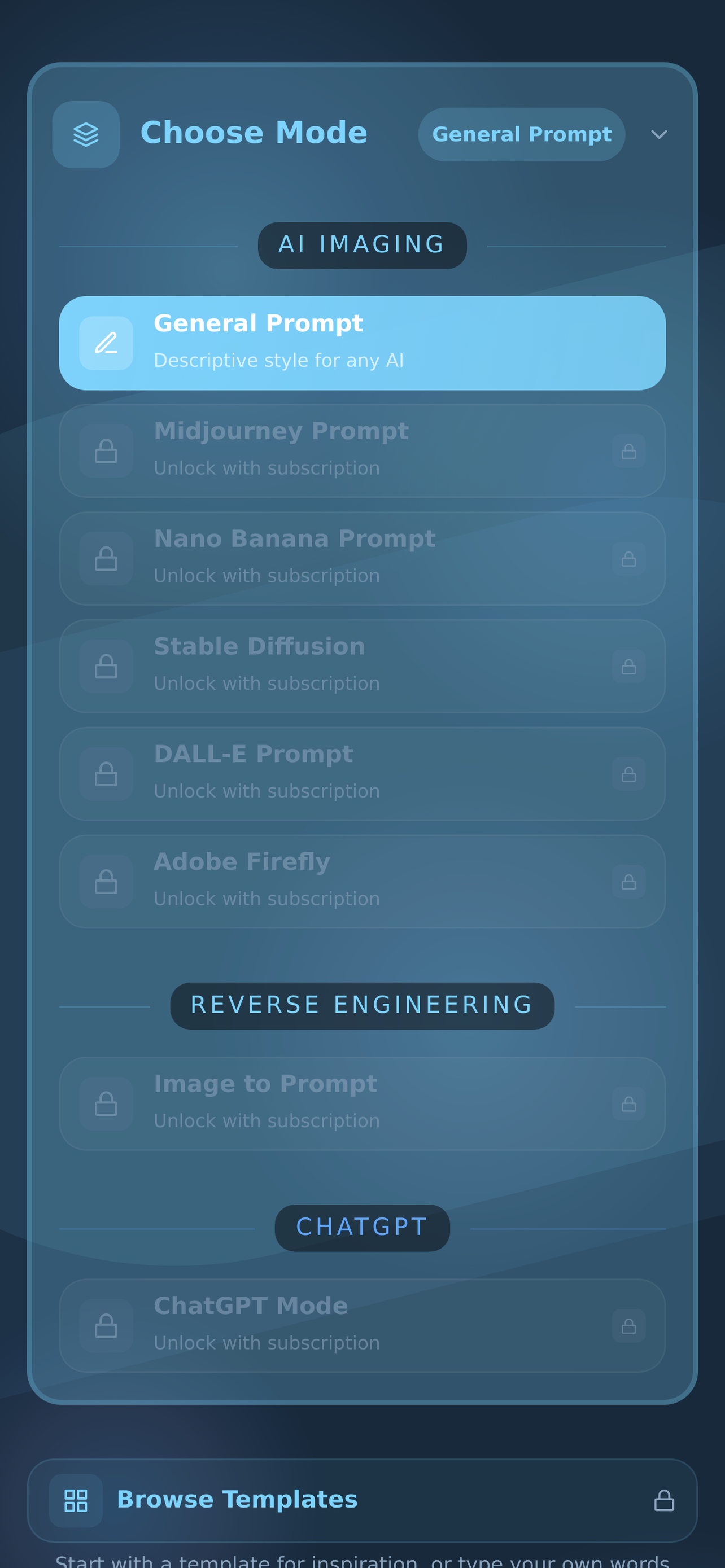
Choose Your Mode
Select a prompt mode that matches your target AI platform. Strata generates optimized language prompts for Midjourney, DALL-E, Stable Diffusion, Adobe Firefly, Nano Banana, and General AI. Use Image to Prompt to reverse engineer any image into editable prompt and layers, or switch to ChatGPT Question to turn your words into intelligent questions.
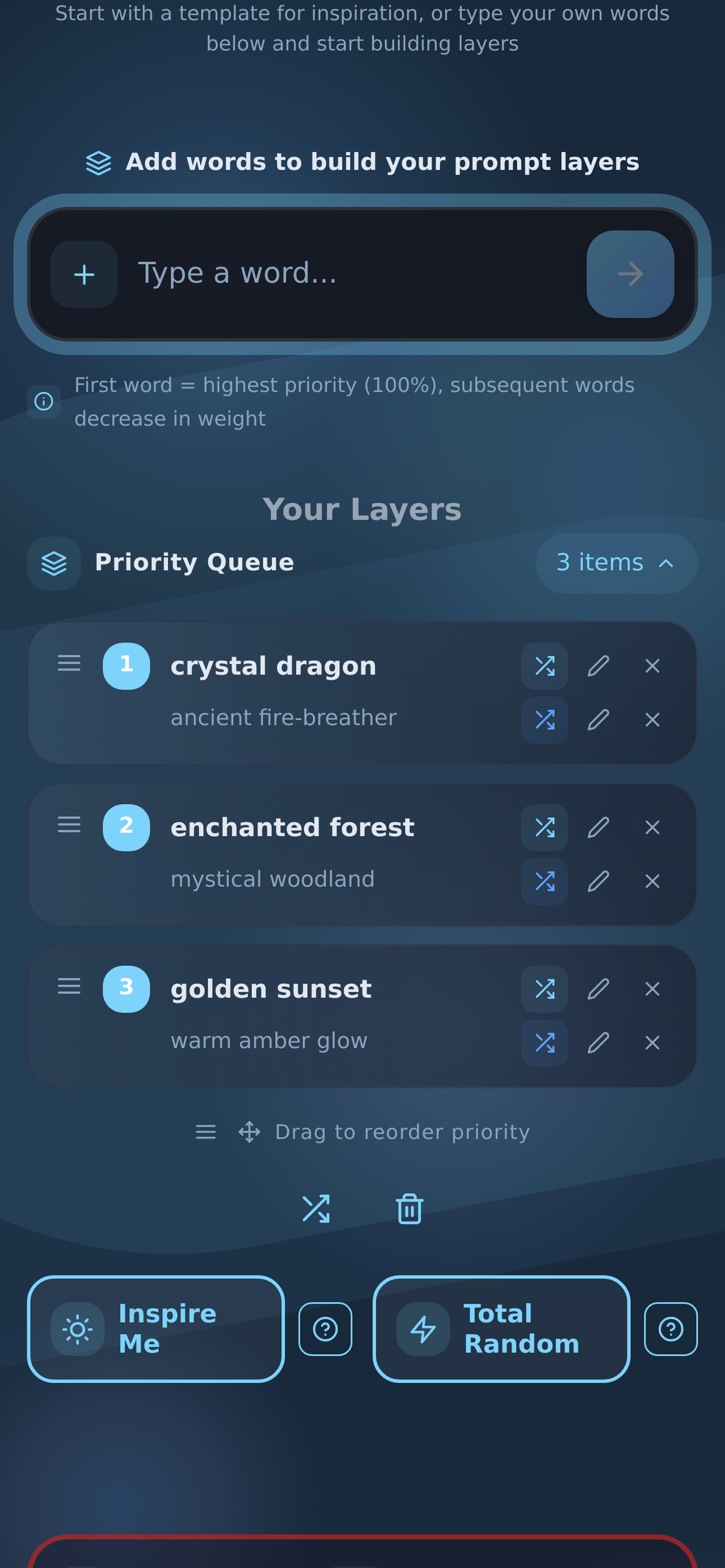
Add Words to Your Strata
Type a word or phrase into the input field and tap Add. Each word becomes a layer in your prompt structure. You can also add an optional subline beneath each word to refine its meaning — for example, the word "Ocean" with a subline "at golden hour" gives the AI more specific direction.
Reorder by Importance
Drag and drop words to reorder them. The Strata System assigns emphasis based on position: the top word carries the strongest influence (100%), while each subsequent layer adds progressively refined detail. This hierarchy directly shapes how the AI interprets your creative intent.
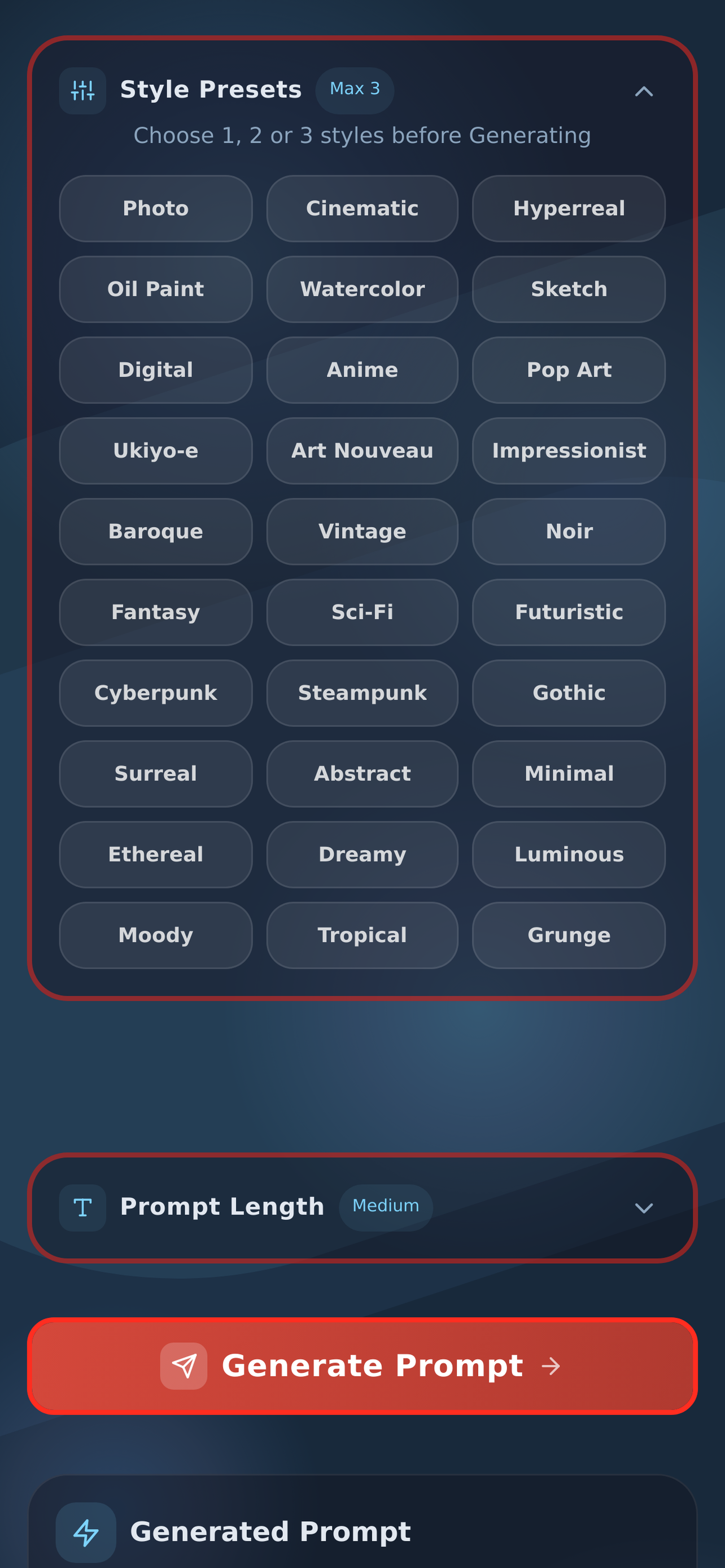
Pick and Mix Styles
Choose from 27 style presets ranging from Photorealistic and Cinematic to Sketch, Watercolor, and Abstract. You can select multiple styles at once — combining them creates unique blended aesthetics. For example, mixing "Photo + Cinematic + Hyperreal" produces a different feel than "Sketch + Vintage + Dreamy".
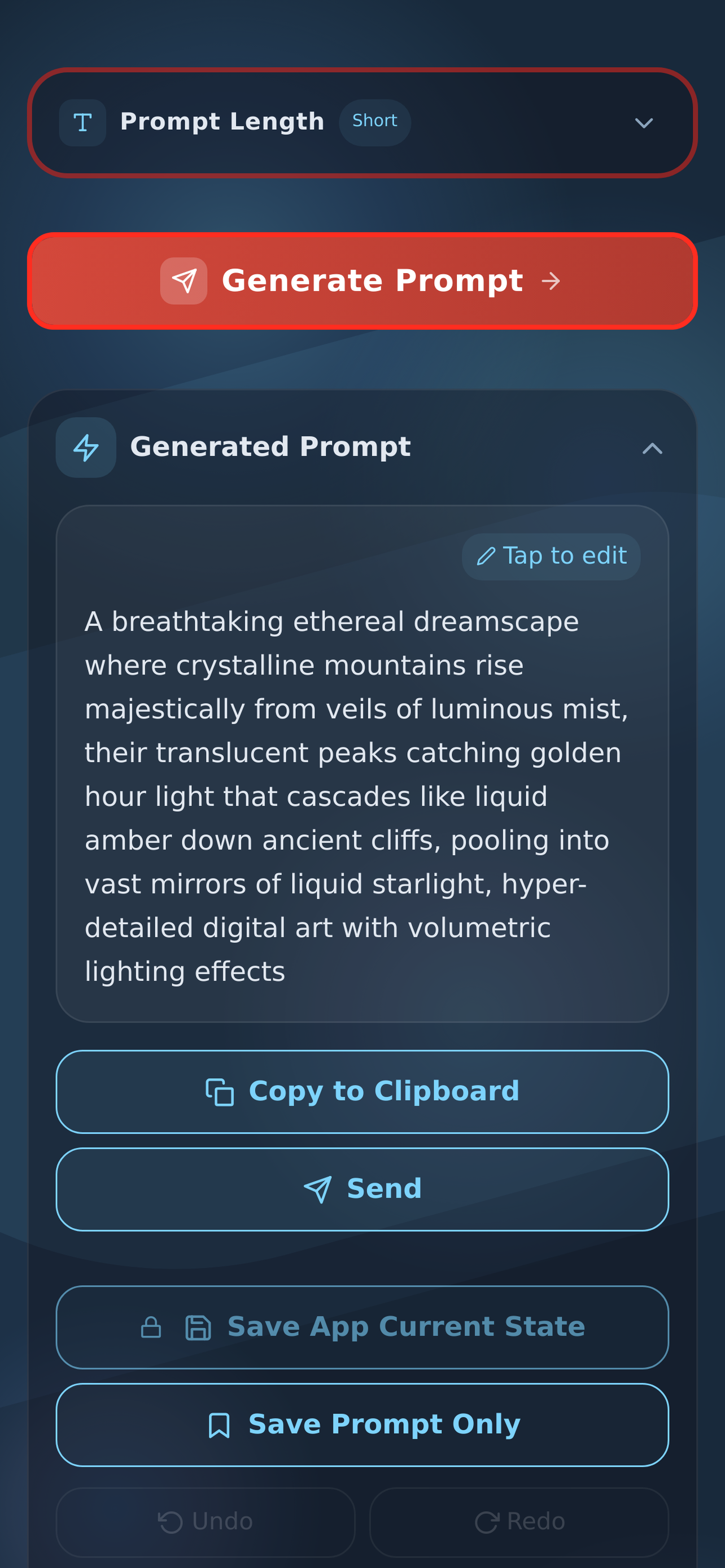
Adjust Prompt Length
Use the prompt length slider to control how detailed your output will be. A shorter prompt gives the AI more creative freedom, while a longer prompt includes more of your layered details and precise descriptions. Find the sweet spot that matches your level of creative control.
Generate Your Prompt
Tap "Generate" and the AI weaves your layered words, selected styles, and mode settings into a polished, ready to use prompt. The output appears with a copy button so you can paste it directly into Midjourney, DALL-E, Stable Diffusion, or any other AI tool. You can also save prompts for later use.
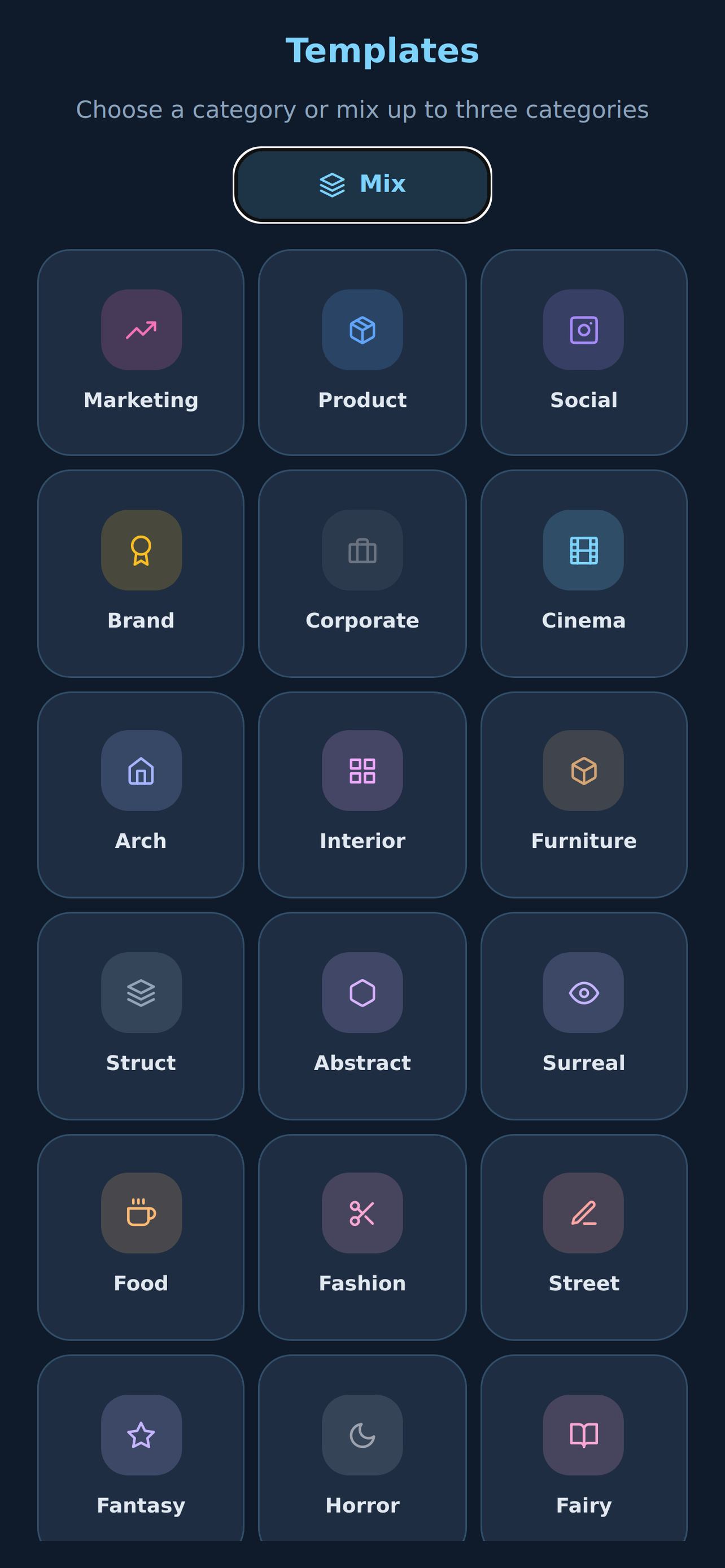
Explore and Mix Templates
Browse 25 interactive templates across categories like Architecture, Fashion, Product Design, and more. Each template has customizable slots you can fill, randomize, or leave open. You can mix multiple templates together — combining "Architecture" with "Cinematic Scene" creates entirely new creative directions you wouldn't reach with either alone.
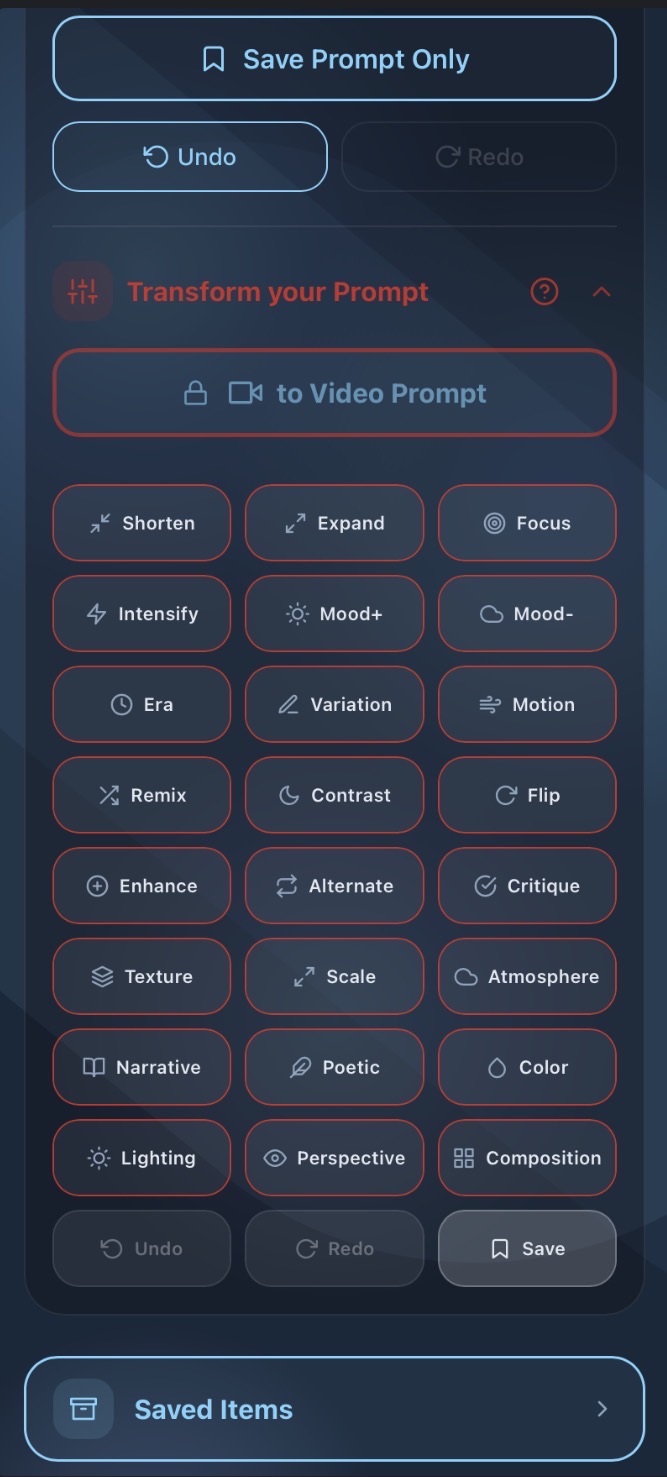
Transform and Refine
After generating a prompt, use 25 transform actions to push it further. Shift the mood, change the lighting, add new materials, adjust perspective, expand detail, or apply a Concept Sketch with 20 sketch style variants. Each transform reshapes your prompt while preserving your original creative intent.
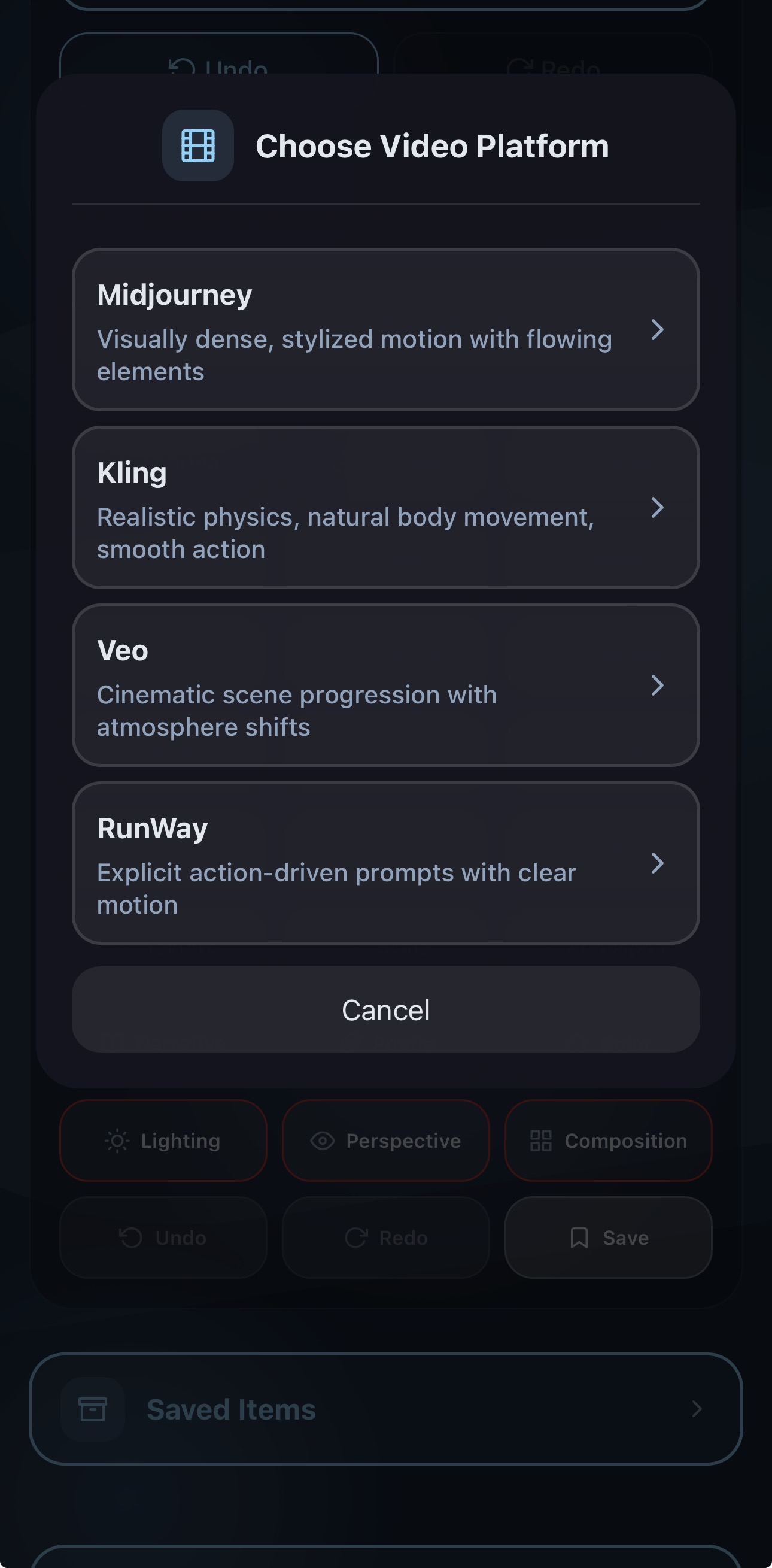
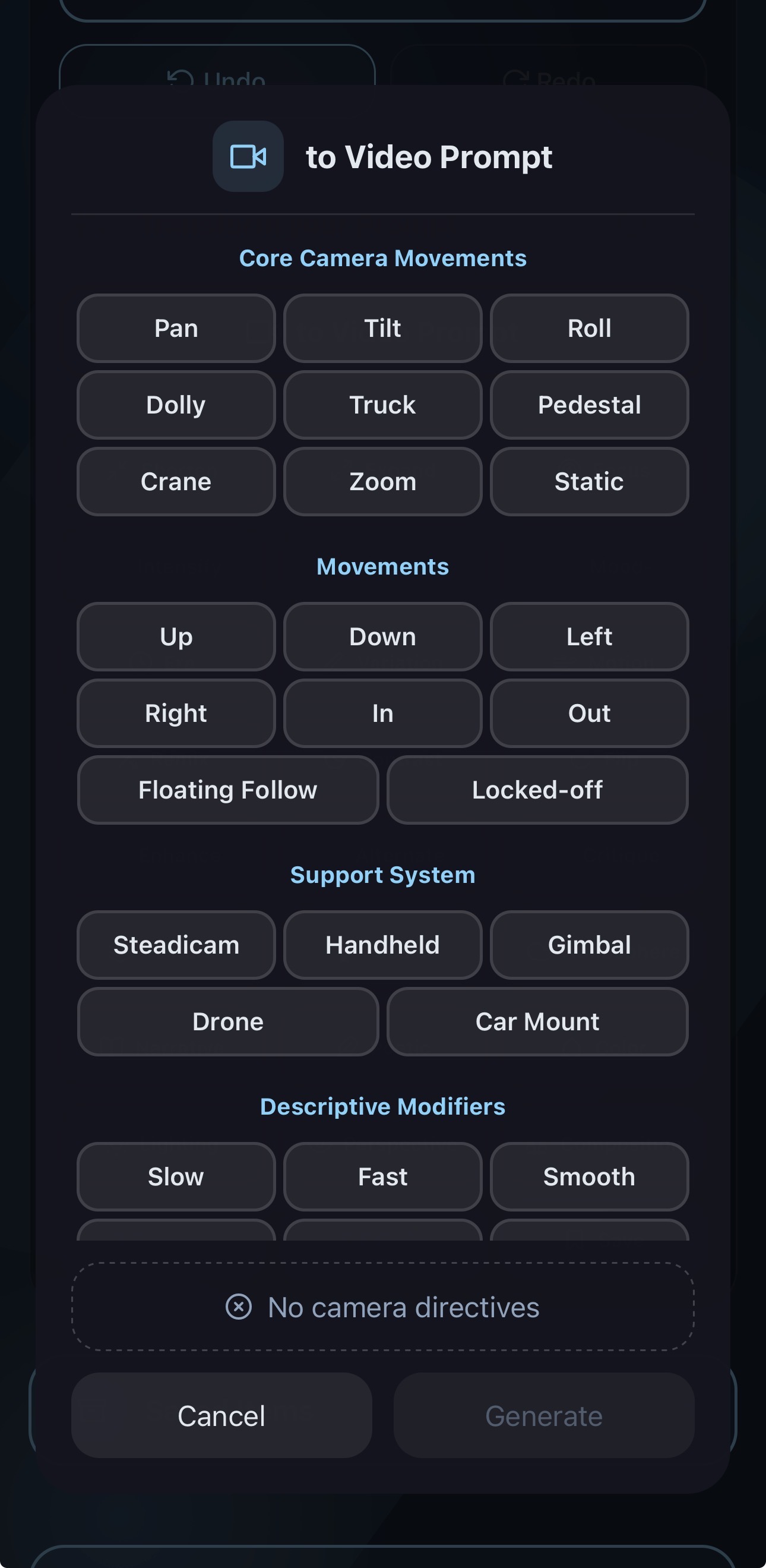
Create Video Prompts
Transform any generated prompt into a dynamic video prompt using the Video Transform feature. The AI analyzes your composition and adds intelligent camera movement, pacing, temporal flow, and cinematic direction. The result is a prompt optimized for video AI platforms like Kling, Veo, and RunWay.
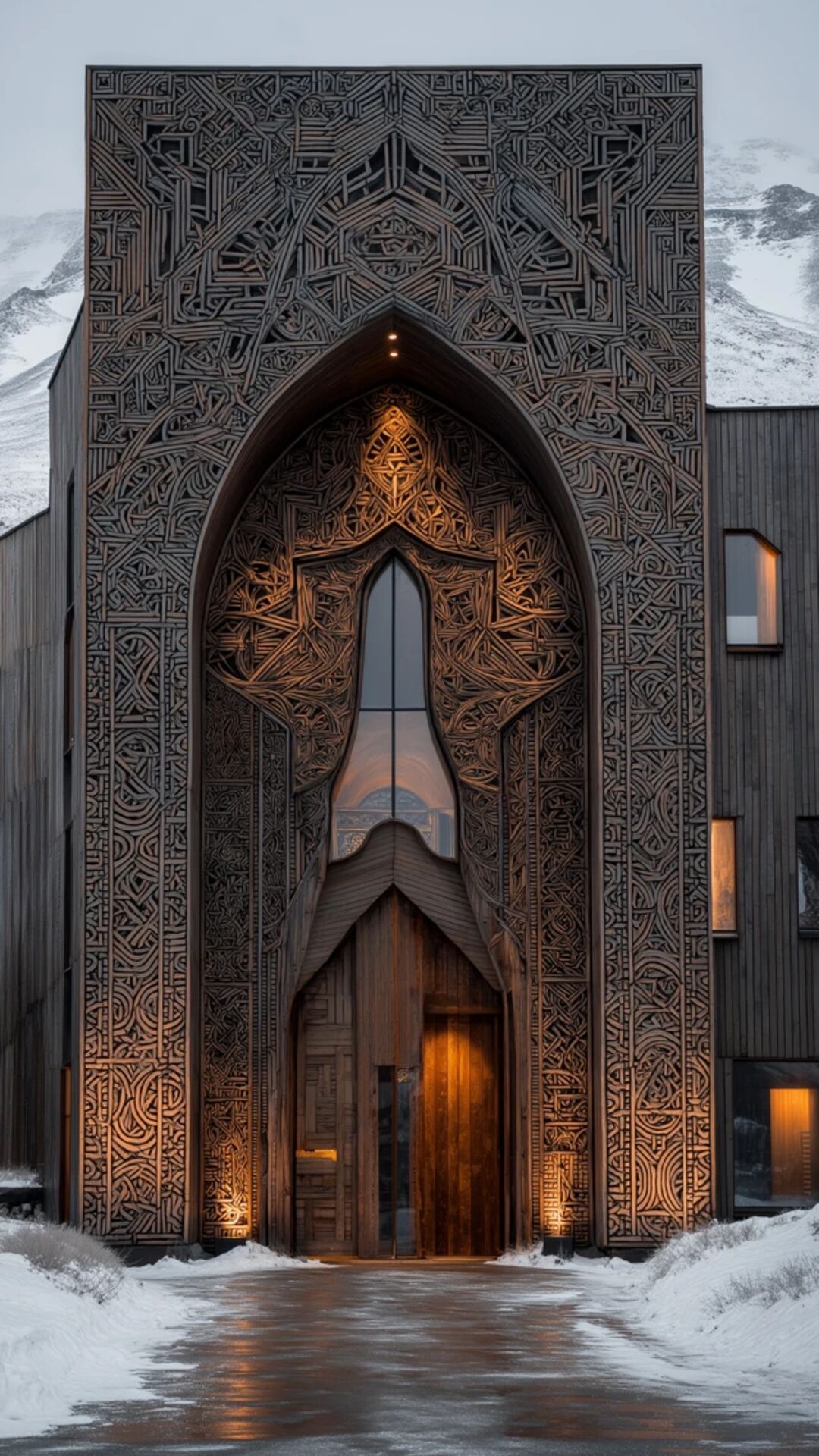
Image to Prompt
Upload any image and let the AI analyze it. Strata's vision system detects composition, color palette, lighting, mood, camera angle, geometric patterns, and artistic style — then structures everything into layered word strata. Use these generated layers as a starting point, rearrange them, and generate new prompts inspired by existing visuals.
Write in Any Language
Strata understands every language. Type your words and sublines in Arabic, Japanese, French, Spanish, Korean, Chinese, Hindi, or any other language you think in. The AI processes your meaning and always generates a polished prompt in English, ready to paste into any AI image or video generator. No translation needed on your end.